Billing Transactions FAQ
Q: Can I delete a Transaction?
A: If the transaction is unposted it can be deleted. After it's posted, reverse the transaction to remove it from the account.
Q: How do I Reverse a Transaction?
A: To reverse billing transactions, see Reverse Charge. For all other transactions, see Reverse a Payment.
Q: How do I enter an adjustment or contractual W/O if I'm not entering a payment?
A: Write-offs and Adjustments can be entered on the Payments And Adjustments form by selecting the desired Transaction Type and then entering the amount to be adjusted or written off as the Transaction Amount and Applied Amount.
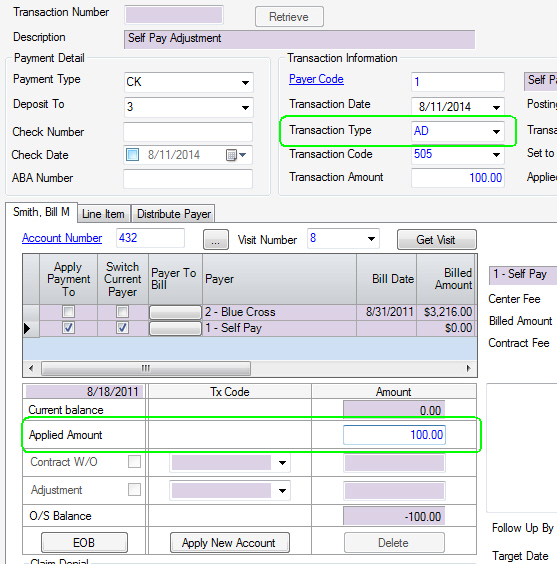
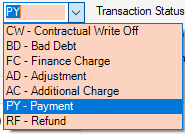
Additional transactions that can be entered in this manner include:
- Bad Debt write-offs
- Finance Charges
- Additional Charges
- Refunds
To enter multiple transactions on self-pay accounts, please see Bulk Self Pay Transactions.
Q: How do I enter a refund?
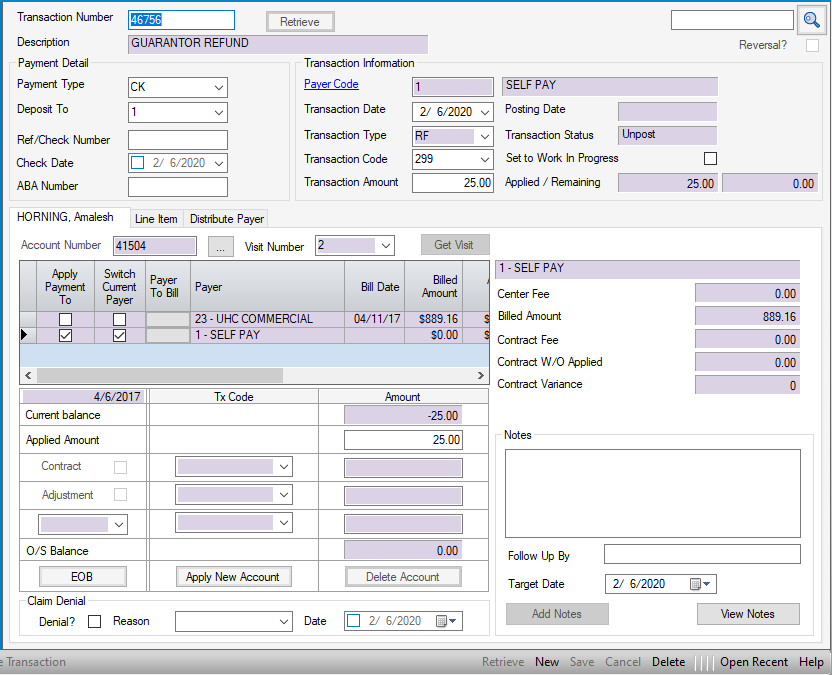
A: It is entered in the same manner as the transactions above. Select RF - Refund as the Transaction Type. Enter a positive integer to offset the credit balance as both the Transaction Amount and Applied Amount. (To confirm that the refund amount has been entered correctly, review the Outstanding Balance prior to posting.)
Q: Why can't I post all the transactions in Transaction Posting?
A: If the total of the Applied Amounts in Payments And Adjustments does not match the Transaction Amount, the transaction will be set to Work In Progress and cannot be posted until the error is corrected. These will appear orange on the Transaction Posting form and will have a Status of Work in progress.
To review the transaction, double click on the grey box in the Payer Code column to return to Payments and Adjustments. The Applied/Remaining section will indicate the amount that is out of balance and the Set to Work In Progress box will be checked, but not available to edit (greyed out)
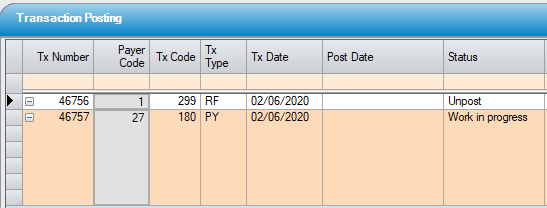
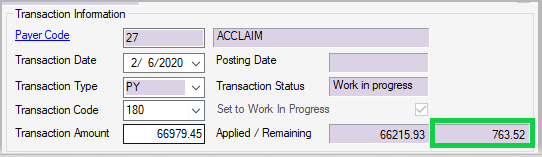
Once corrections have been made and the Remaining box = 0.00, the Transaction Status will indicate Unposted and the Set to Work In Progress box will be unchecked and open to edit. The transaction can then be posted.
NOTE: The Set to Work In Progress box can be manually selected to prevent posting of a transaction. It is also checked by default when utilizing Bulk Self Pay Transactions. In these cases, simply uncheck the box when ready to post the transaction.